Hey, have you met the situation that iPhone was stuck in an infinite bootloop with intermittent blue screens (of death?), even the buttons are useless to make the phone work. This kind of problem have happen to many users ramdomly. It is caused by a software problem in iOS.
To fix bule screen of death iPhone 6, some ways can reliable.
Solution 1: Check all apps in your iPhone 6
In some case, some apps may conflict with the iOS. So, you can try to check whether some apps are not identified by App store, or update them to the lastest versions which may been fixed the bug of confiliction. However, if you find that blue screen of death was happen when you launch an app, and update or reinstallation can't solve this problem, you can uninstall the app.
Solution 2: Try to update your iPhone 6 to lastest iOS
Based on the data, this blue screen problem mostly happen in relative old version. So it is better to update your iPhone 6 system to the lastest version such as iOS 8 or iOS 9.
Solution 3: Shut down iCloud sycn in your device
Some users have report that, when they enale iCloud sycn in settings, blue screen will happen. Especially, when the syncing for notes, contacts, Safari,are working, you press Home button, blue screen may happen in this moment. Apple seems that don't explain why this issue happen. And when those users shut down iCloud sync feature after reboot, this kind of problem never happen again.
Solution 4: Reset your iPhone with iTunes
If you can't operate anything on your iPhone to slove iPhone 6 blue screen problem, I am afraid that you need to try to do a factory resetting with iTunes. Of course, you can uset iTunes to back up your phone data firstly before resetting, then after fixing iPhone 6 blue srceen problem via resetting, you can get back you phone data.
Solution 5 : Use FREE Reiboot to exit blue screen stage
With Reiboot, you can easily enter and exit iPhone/iPad/iPod touch Recovery Mode without manually holding down any of the buttons. Just one-Click ! It can keep your iOS devices data safely enter into Recovery Mode and then get out of Recovery Mode even when iPhone/iPad/iPod Touch encountered reboot failure, such as getting stuck with Apple logo, black screen, iTunes logo/cable, or an endless loop of rebooting.This way is a good way to help your iPhone 6 exit death blue screen .
Recover deleted & lost photos,contacts,notes,text messages, whatsapp, call history,MMS,bookmarks,videos etc. from iPhone 6 Plus/6/5S/5C/5/4/4S/3gs,iPad,iPod Touch from/without iTunes or iCloud backup file.
7/14/2015
6/08/2015
How to Recover Disappeared Contacts on iPhone 6 Plus/6
We all know that phone contacts is some kind of important resource in our life, but sometimes we may accidentally get them to disappear for some reason. This is a disaster for us, so there is a topic we will discuss today: How to recover disappeared contacts on iPhone 6 Plus/6.
1.Deleted by Accident
2.iOS update
3.Factory reset
4.iPhone Plus/6 Jailbreak
5.Attacked by Virus
6.iPhone Plus/6 is stuck in black/white Apple logo screen or other death screen
7.iPhone Plus/6 is stuck in recovery mode
8.Battery replacement
If we encounter those situation and find that our contacts are lost, the important thing is try to figure out a way to recover the disappeared contacts on iPhone 6 Plus/6 .
iPhone 6 +/6 don’t have some function like recover our contacts automatically, so if we want to recover them from our iPhone directly, we need to use a third-party data recovery software. Of course, if we have synced our iPhone 6 Plus/6 with iTunes, we can restore our lost contacts by iTunes.
Speaking of the third-party data recovery software, Tenorshare iPhone 6 Data Recovery can achieve this goal for you, directly recover the data is the selling point of this program, with this feature, you can easily get your deleted contacts back, not only the disappeared contacts, the lost photos, videos, WhatsApp messages, voice memo and so on from iPhone 6+ can also be restored by 3 steps:
The First Step: select the recovery mode
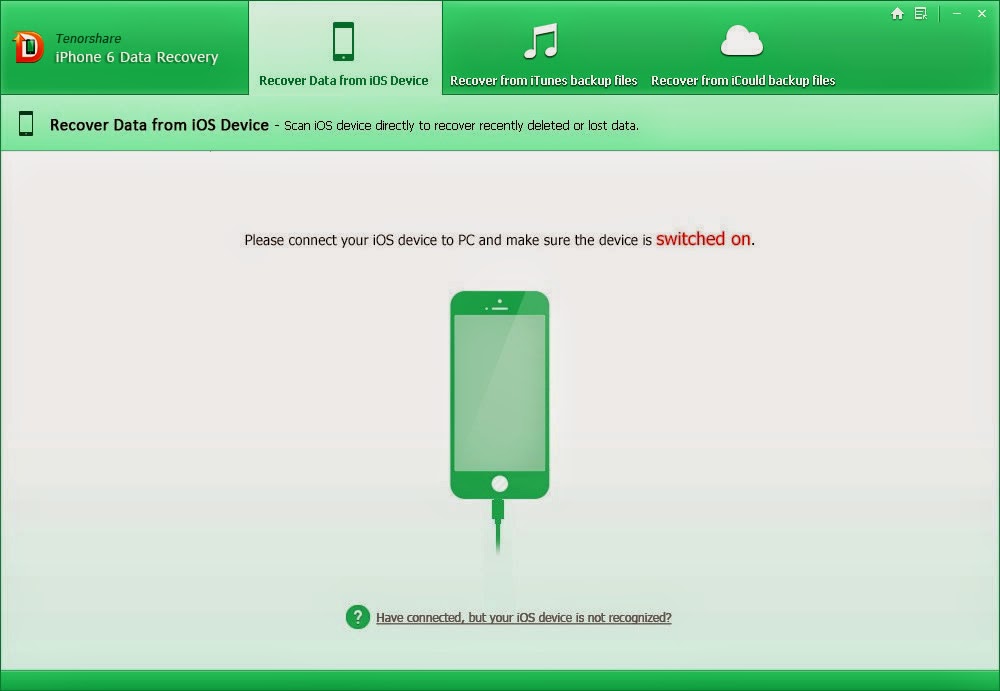
There are three modes can be chosen: “Recover Data from iOS device”, “Recover from iTunes backup files”, “Recover from iCloud backup files”. It is very easy to understand, in this case, we choose the “Recover Data from iOS device”.
The Second Step: Scan
All three modes need to executive the step of scan. The scan time depends on how many files on your iPhone 6 Plus/iPhone 6.
The Last Step: Preview and Recovery
When the scan is done, you can select the contacts on the left and preview all of them, choose the contacts you need and recover them.
You can master this program in a few minutes, it is not complicated, just follow the guide you can easily get your lost contacts back. By the way, Tenorshare iPhone 6 Plus/6 Data Recovery also can restore your contacts from your iTunes or iCloud backup, and the advantage is only one software can complete all the recover or backup mission. It’s convenience and easy to use. I hope it can help you!
We need to know why would we lose our contacts first.
1.Deleted by Accident
2.iOS update
3.Factory reset
4.iPhone Plus/6 Jailbreak
5.Attacked by Virus
6.iPhone Plus/6 is stuck in black/white Apple logo screen or other death screen
7.iPhone Plus/6 is stuck in recovery mode
8.Battery replacement
If we encounter those situation and find that our contacts are lost, the important thing is try to figure out a way to recover the disappeared contacts on iPhone 6 Plus/6 .
Therefore, how to recover disappeared contacts on iPhone 6 Plus/6?
iPhone 6 +/6 don’t have some function like recover our contacts automatically, so if we want to recover them from our iPhone directly, we need to use a third-party data recovery software. Of course, if we have synced our iPhone 6 Plus/6 with iTunes, we can restore our lost contacts by iTunes.
Speaking of the third-party data recovery software, Tenorshare iPhone 6 Data Recovery can achieve this goal for you, directly recover the data is the selling point of this program, with this feature, you can easily get your deleted contacts back, not only the disappeared contacts, the lost photos, videos, WhatsApp messages, voice memo and so on from iPhone 6+ can also be restored by 3 steps:
The First Step: select the recovery mode
There are three modes can be chosen: “Recover Data from iOS device”, “Recover from iTunes backup files”, “Recover from iCloud backup files”. It is very easy to understand, in this case, we choose the “Recover Data from iOS device”.
The Second Step: Scan
All three modes need to executive the step of scan. The scan time depends on how many files on your iPhone 6 Plus/iPhone 6.
The Last Step: Preview and Recovery
When the scan is done, you can select the contacts on the left and preview all of them, choose the contacts you need and recover them.
You can master this program in a few minutes, it is not complicated, just follow the guide you can easily get your lost contacts back. By the way, Tenorshare iPhone 6 Plus/6 Data Recovery also can restore your contacts from your iTunes or iCloud backup, and the advantage is only one software can complete all the recover or backup mission. It’s convenience and easy to use. I hope it can help you!
4/16/2015
iPhone 6 Plus and other iOS 8 devices deleted photos recovery
It is easy for iPhone 6 Plus and other iOS 8 devices users to recover deleted photos, because there is a recycle bin feature in iOS 8 gallery app. As long as you haven't clean deleted photos in recycle bin folder, you just click "restore" to get them back to galley.
Except for accidentally deletion, you may lost photos from your iPhone 6 Plus or other iOS devices caused by the following reasons:
1. iOS upgrade failure
2. iPhone jailbreak
3. iPhone has been stolen
4. iPhone has been broken
5. Factory setting restoration
Unless you have backup, as long as your deleted photos haven't been in the recycle bin, you can't get back them easily.
To get back iPhone deleted photos, generally, we have two types of ways.
Way 1: we can rely on iTunes backup
When we use iTunes backup to restore lost iPhone data, we can directly restore in iTunes program by official operation. This way will totally restore whole system for your iPhone with previous stage that was backed up.
Another ways to restore iTunes backup is the 3rd-party professional iPhone data recovery program. This kind of recovery program can read iTunes backup file and extract specific data in backup files.
Tenorshare iPhone Data Recovery is one of them which are the most powerful. It can help you restore lost iPhone 6 Plus data via iTunes backup. However, it is different from official restoration. With this program, you can view the specific files that have backed up before, it means, you can just get back what you want instead of restoring the whole system. It is more convenient.
Way 2: you can try to directly do recovery from iPhone without backup
Honestly, the most excited feature of Tenorshare iPhone Data Recovery not only is helping user to restore data from iTunes backup, but also can directly do iPhone 6 Plus deleted data recovery without backup.
This feature is the main point of iPhone data recovery program. With the help of this feature, you can easily get back deleted, lost photos, contacts, text messages, videos, WhatsApp messages, voice memo, etc from iPhone 6/6 Plus/ iPhone 5S or other iOS devices.
"Connect-Scan-Recover", only 3 step can help you retrieve iPhone 6 Plus or other iOS 8 device deleted photos
Hey,have you known how to get back your deleted photos from iPhone 6 Plus? I hope my sharing can help you!
However,deleted photos have been removed?
Sometimes, it is not so smoothly to recover deleted photos from iPhone 6 Plus and other iOS 8 devices. Deleted photos in recycle bin just will be kept for 30 days; system will clean them automatically when time is out. Besides, some other management program for iOS device may removed deleted photos when you use clean phone option.Except for accidentally deletion, you may lost photos from your iPhone 6 Plus or other iOS devices caused by the following reasons:
1. iOS upgrade failure
2. iPhone jailbreak
3. iPhone has been stolen
4. iPhone has been broken
5. Factory setting restoration
Unless you have backup, as long as your deleted photos haven't been in the recycle bin, you can't get back them easily.
Ways for iPhone 6 Plus or other iOS 8 device deleted photos recovery
To get back iPhone deleted photos, generally, we have two types of ways.
Way 1: we can rely on iTunes backup
When we use iTunes backup to restore lost iPhone data, we can directly restore in iTunes program by official operation. This way will totally restore whole system for your iPhone with previous stage that was backed up.
Another ways to restore iTunes backup is the 3rd-party professional iPhone data recovery program. This kind of recovery program can read iTunes backup file and extract specific data in backup files.
Tenorshare iPhone Data Recovery is one of them which are the most powerful. It can help you restore lost iPhone 6 Plus data via iTunes backup. However, it is different from official restoration. With this program, you can view the specific files that have backed up before, it means, you can just get back what you want instead of restoring the whole system. It is more convenient.
Way 2: you can try to directly do recovery from iPhone without backup
Honestly, the most excited feature of Tenorshare iPhone Data Recovery not only is helping user to restore data from iTunes backup, but also can directly do iPhone 6 Plus deleted data recovery without backup.
This feature is the main point of iPhone data recovery program. With the help of this feature, you can easily get back deleted, lost photos, contacts, text messages, videos, WhatsApp messages, voice memo, etc from iPhone 6/6 Plus/ iPhone 5S or other iOS devices.
"Connect-Scan-Recover", only 3 step can help you retrieve iPhone 6 Plus or other iOS 8 device deleted photos
Hey,have you known how to get back your deleted photos from iPhone 6 Plus? I hope my sharing can help you!
1/26/2015
How to Retrieve the Notes that Have Disappeared from iPhone 6
iPhone 6 notes disappeared or deleted accidentally is quite normal. I searched the Internet and found that the reasons bring iPhone 6 notes missing usually includes:
-Upgrade iOS 8 or Jailbreak iOS 8 is failed.
-Press Deleted button by mistake.
-iPhone 6 is water damaged, broken, or dead.
-Factory Restore.
-A failed sync.
-iPhone 6 stuck in recovery mode/Apple Logo, or blue screen of death.
If you lost notes on iPhone 6 because any of the reason above, don’t panic, the following tips will walk you through how to retrieve deleted notes from iPhone 6 and iPhone 6 Plus. To do that, you’ll need iPhone 6 data recovery tool.
What the iPhone 6 data recovery tool can help for note recovery?
What other data can iPhone 6 data recovery program can retrieve?
In addition, this tool can recover other 15 types of files on iPhone 6 and iPhone 6 Plus including call history, text messages (iMessages), notes, calendar, recordings, reminders, Safari bookmarks, photos, camera videos, SMS attachments, voice memos, WhatsApp, Tango, Viber.
Just download the iPhone 6 note recovery trial version and begin start.
Run program and you will see the interface below:

As you can see, there are three selections for recovery: from iOS device, from iTunes backup files and from iCloud backup files. All of the three recovery modes just need 3 steps.
The First Step: select recovery mode and …
Click the icon on the top of the program interface that you can easily switch the recovery modes.
-If you haven’t backed up iPhone notes, click the “phone” icon, and connect iPhone 6 to computer.
-If you have synced iPhone notes with iTunes, click the “iTunes” icon and select the iTunes backup file to scan.
-If iPhone notes have been backed up on iCloud, then click the “iCloud” icon to enter iCloud account and password to download iCloud backup file.
The Second Step: Scan
All the files in iTunes and iCloud will be scanned in seconds.
And, when you recover iPhone notes without backup, it will take you a few minutes to scan. The scan time is depended on how many files on your iPhone 6.
The Last Step: Preview and Recovery
When the scan is finished, click the “Note” list on the left of the program. Before perform iPhone note recovery, you can preview notes, and decide which notes to recover.
References
iPhone Backup Extractor
Any Data Recovery
-Upgrade iOS 8 or Jailbreak iOS 8 is failed.
-Press Deleted button by mistake.
-iPhone 6 is water damaged, broken, or dead.
-Factory Restore.
-A failed sync.
-iPhone 6 stuck in recovery mode/Apple Logo, or blue screen of death.
If you lost notes on iPhone 6 because any of the reason above, don’t panic, the following tips will walk you through how to retrieve deleted notes from iPhone 6 and iPhone 6 Plus. To do that, you’ll need iPhone 6 data recovery tool.
What the iPhone 6 data recovery tool can help for note recovery?
- Works as an iPhone backup extractor which has the ability to extract files from iTunes or iCloud backup file.
- Recover iPhone 6 notes without backup if you haven’t made notes synced with iCloud or iTunes.
- Backup iPhone notes to computer to ensure safety.
- Print iPhone notes directly.
What other data can iPhone 6 data recovery program can retrieve?
In addition, this tool can recover other 15 types of files on iPhone 6 and iPhone 6 Plus including call history, text messages (iMessages), notes, calendar, recordings, reminders, Safari bookmarks, photos, camera videos, SMS attachments, voice memos, WhatsApp, Tango, Viber.
Just download the iPhone 6 note recovery trial version and begin start.
Run program and you will see the interface below:

As you can see, there are three selections for recovery: from iOS device, from iTunes backup files and from iCloud backup files. All of the three recovery modes just need 3 steps.
The First Step: select recovery mode and …
Click the icon on the top of the program interface that you can easily switch the recovery modes.
-If you haven’t backed up iPhone notes, click the “phone” icon, and connect iPhone 6 to computer.
-If you have synced iPhone notes with iTunes, click the “iTunes” icon and select the iTunes backup file to scan.
-If iPhone notes have been backed up on iCloud, then click the “iCloud” icon to enter iCloud account and password to download iCloud backup file.
The Second Step: Scan
All the files in iTunes and iCloud will be scanned in seconds.
And, when you recover iPhone notes without backup, it will take you a few minutes to scan. The scan time is depended on how many files on your iPhone 6.
The Last Step: Preview and Recovery
When the scan is finished, click the “Note” list on the left of the program. Before perform iPhone note recovery, you can preview notes, and decide which notes to recover.
References
iPhone Backup Extractor
Any Data Recovery
1/13/2015
How to Retrieve Deleted Viber Messages on iPhone and iPad
My friend Linda has lost all the Viber messages from her best friend after an accidental factory restore. She writes:
Can I recover deleted Viber messages from my iPhone 6, and how? I lost the whole chat history after accidental restore. Please help!
First all of, you should know that factory reset iPhone will erase all the data permanently. In other words, it is impossible to recover deleted Viber messages iPhone directly, but you can try iTunes backup or iCloud backup.
And of course, factory restore is not the only reason may cause iPhone viber messages lost, you may also lost Viber data because accidental deletion, failed iOS update or jailbreak, iPhone is water damaged, broken etc. Fear not. You can recover Viber data on iPhone from all of the situations above. Any iOS Data Recovery program provides the best solution for iPhone Viber chat history recovery!
Now, free download Any iOS Data Recovery for Windows or Mac to have a try.
Install and run iOS Data Recovery program on any PC, choose “Recover Data from iOS Device”, then connect iPhone with PC.
This tool will automatically identify and scan your iPhone. More files in your iPhone, the scan time is longer, so please be patient and wait.
When the scan is over, you can preview all the data including Viber call, Viber messages, contacts, photos, text messages by clicking the catalogs on the left.
The last step is to select those Viber messages you want and click “Recover” button to save them on computer.
Note: Any iOS Data Recovery program is the only tool that supports Viber data recovery by far.
As mentioned above, iTunes and iCloud are the solutions to undelete Viber messages. We are not suggesting that you restore backup files by following the instructions of Apple because if follow that way, the files in backup will replace all the data in iPhone! To avoid this, you can use iOS Data Backup Extractor.
- To extract Viber messages from iTunes, switch to the second mode “Recover Data from iTunes backup file”, then select the iTunes backup file to scan. After you do this, preview, scan and restore Viber messages and save them to computer.
- To extract Viber chats from iCloud, switch to the third mode “Recover Data from iCloud Backup file”. You need to enter iCloud account and password to download iCloud backup file to scan and perform recovery.
For detailed information of restoring iPhone Viber messages from backup, please go to http://www.any-data-recovery.com/iphone-data/how-to-recover-viber-messages-photos-contacts-call-history-on-iphone.html
You May Also Like:
Can I recover deleted Viber messages from my iPhone 6, and how? I lost the whole chat history after accidental restore. Please help!
First all of, you should know that factory reset iPhone will erase all the data permanently. In other words, it is impossible to recover deleted Viber messages iPhone directly, but you can try iTunes backup or iCloud backup.
And of course, factory restore is not the only reason may cause iPhone viber messages lost, you may also lost Viber data because accidental deletion, failed iOS update or jailbreak, iPhone is water damaged, broken etc. Fear not. You can recover Viber data on iPhone from all of the situations above. Any iOS Data Recovery program provides the best solution for iPhone Viber chat history recovery!
Now, free download Any iOS Data Recovery for Windows or Mac to have a try.
Part 1: Retrieve Deleted Viber Chat on iPhone and iPad without Backup
Install and run iOS Data Recovery program on any PC, choose “Recover Data from iOS Device”, then connect iPhone with PC.
This tool will automatically identify and scan your iPhone. More files in your iPhone, the scan time is longer, so please be patient and wait.
When the scan is over, you can preview all the data including Viber call, Viber messages, contacts, photos, text messages by clicking the catalogs on the left.
The last step is to select those Viber messages you want and click “Recover” button to save them on computer.
Note: Any iOS Data Recovery program is the only tool that supports Viber data recovery by far.
Part 2: Restore iPhone and iPad Viber Messages from Backup
As mentioned above, iTunes and iCloud are the solutions to undelete Viber messages. We are not suggesting that you restore backup files by following the instructions of Apple because if follow that way, the files in backup will replace all the data in iPhone! To avoid this, you can use iOS Data Backup Extractor.
- To extract Viber messages from iTunes, switch to the second mode “Recover Data from iTunes backup file”, then select the iTunes backup file to scan. After you do this, preview, scan and restore Viber messages and save them to computer.
- To extract Viber chats from iCloud, switch to the third mode “Recover Data from iCloud Backup file”. You need to enter iCloud account and password to download iCloud backup file to scan and perform recovery.
For detailed information of restoring iPhone Viber messages from backup, please go to http://www.any-data-recovery.com/iphone-data/how-to-recover-viber-messages-photos-contacts-call-history-on-iphone.html
You May Also Like:
12/23/2014
Review: the Best iPad Data Recovery Software in the World
What’s the best iPad data recovery software?
With iTunes or iCloud, you can easily back up your iPad regularly so that you can get back the data from backup file after deleted or lost, and Apple offers the free tutorials for you to do so. But when you forgot to backup or it is too late to do a backup, then you need iPad data recovery software to recover files from iPad directly, so here is a question: which iPad data recovery should we choose?
Based on most iPad users’ feedback and the using experience of mine, Tenorshare iPad Data Recovery program is the most recommended! In the following I will tell you why.
Top features of Tenorshare iPad data recovery software
*Simple interface, use it without any difficulty.
*3 recovery ways: recover data from iPad no backup, recover iPad data through iTunes backup file and restore data via iCloud backup file.
*Up to 16 types of files supports including photos, notes, contacts, text messages.
*Compatible well with iOS 8/7/6 and works for all the iPad version like iPad Air 2, iPad Air, iPad Mini 3/2/1, iPad 4, iPad 3, iPad 2 and the iPad 1.
* Free scan and view iPad data.
*24/7 technique support and free life-time long upgrade.
Cons
*Free recover 3 items from every kind of iPad files via iTunes and iCloud, for more, you have to pay.
Don't be afraid when lost iPad data because accidentally deleted, factory restore, iOS upgrade, blue screen of death or water damaged etc. Just follow the steps below to get back lost data on iPad.
Here’s how to use iPad data recovery software
a. Download iPad data recovery tool (Windows or Mac), then install and launch program.
b. Choose recovery mode.
c. Scan iPad data.
b. Preview iPad data.
d. Select iPad file need to recover and click “Recover” button to finish it.
Takeaway:
Tenorshare iPad data recovery software is the life saver when you lost iPad data without any backup and it is also a convenient way to extract iPad data from iTunes and iCloud backup which is very helpful when your iPad is broken or lost.
Finally, you can find more useful iOS devices (iPhone and iPod) data recovery software from any-data-recovery.com
With iTunes or iCloud, you can easily back up your iPad regularly so that you can get back the data from backup file after deleted or lost, and Apple offers the free tutorials for you to do so. But when you forgot to backup or it is too late to do a backup, then you need iPad data recovery software to recover files from iPad directly, so here is a question: which iPad data recovery should we choose?
Based on most iPad users’ feedback and the using experience of mine, Tenorshare iPad Data Recovery program is the most recommended! In the following I will tell you why.
Top features of Tenorshare iPad data recovery software
*Simple interface, use it without any difficulty.
*3 recovery ways: recover data from iPad no backup, recover iPad data through iTunes backup file and restore data via iCloud backup file.
*Up to 16 types of files supports including photos, notes, contacts, text messages.
*Compatible well with iOS 8/7/6 and works for all the iPad version like iPad Air 2, iPad Air, iPad Mini 3/2/1, iPad 4, iPad 3, iPad 2 and the iPad 1.
* Free scan and view iPad data.
*24/7 technique support and free life-time long upgrade.
Cons
*Free recover 3 items from every kind of iPad files via iTunes and iCloud, for more, you have to pay.
Don't be afraid when lost iPad data because accidentally deleted, factory restore, iOS upgrade, blue screen of death or water damaged etc. Just follow the steps below to get back lost data on iPad.
Here’s how to use iPad data recovery software
a. Download iPad data recovery tool (Windows or Mac), then install and launch program.
b. Choose recovery mode.
c. Scan iPad data.
b. Preview iPad data.
d. Select iPad file need to recover and click “Recover” button to finish it.
Takeaway:
Tenorshare iPad data recovery software is the life saver when you lost iPad data without any backup and it is also a convenient way to extract iPad data from iTunes and iCloud backup which is very helpful when your iPad is broken or lost.
Finally, you can find more useful iOS devices (iPhone and iPod) data recovery software from any-data-recovery.com
12/02/2014
Review: Tenorshare iTunes Data Recovery Mac-The Best iTunes Backup Extractor for iPhone 6/5/4
Note: This is the review written on the CNET.I think you want to know it if you're wondering whether to buy Tenorshare iTunes Data Recovery Mac or not.
iTunes Data Recovery for Mac recovers data from iTunes backups, a very attractive feature for anyone who's ever lost or damaged an iPhone, iPad, or iPod. Although it's not without its flaws, this app could be a godsend for anyone who's panicked over missing photos, contacts, or other data. To get the Windows version, please click here.
Pros
Straightforward operation: The app first scans your computer for iTunes backup files and then displays its findings. To restore data, you need only choose a file to scan. iTunes Data Recovery for Mac will show all the data contained in the backup, including Call History, Contacts, Messages, SMS attachments, Notes, Safari history and bookmarks, Calendar data, Reminders, Voice Memos, Camera Roll, and Photos. Select the files you want, click Recover, and the app will deposit the files in your preferred location.
Intuitive interface: Even if you've never used an app like this before, it's easy to get started with iTunes Data Recovery for Mac because the interface walks you through the steps in recovering your data. Additional guidance is available on the developer's website, as well.
Cons
Performance issues: Although iTunes Data Recovery for Mac generally worked as expected, we did see the spinning pinwheel more than once while using it. At one point the app stopped responding completely, and we had to restart it, in order to continue with our recovery.
Trial limitations: The trial version of the app only lets you recover the first three items in each category, offering obfuscated previews of everything else. It's enough to prove that the app works, as a trial version should, but you're going to have to ante up to get any real use from this app.
Bottom Line
If you've lost your mobile device and are desperate to recover your data, give iTunes Data Recovery for Mac a try. If you're willing to pay the purchase price, you'll be able to access any data you have stored in an iTunes backup -- and for many users, that's priceless.
Editors' note: This is a review of the trial version of iTunes Data Recovery for Mac 5.0.0.0.
Moreover, Tenorshare also offers a higher version-iPhone data recovery which supports you to recover data from iCloud backup and even without backup.
Here are the related tutorials to recover iPhone data with Tenorshare iPhone data recovery software.
iTunes Data Recovery for Mac recovers data from iTunes backups, a very attractive feature for anyone who's ever lost or damaged an iPhone, iPad, or iPod. Although it's not without its flaws, this app could be a godsend for anyone who's panicked over missing photos, contacts, or other data. To get the Windows version, please click here.
Pros
Straightforward operation: The app first scans your computer for iTunes backup files and then displays its findings. To restore data, you need only choose a file to scan. iTunes Data Recovery for Mac will show all the data contained in the backup, including Call History, Contacts, Messages, SMS attachments, Notes, Safari history and bookmarks, Calendar data, Reminders, Voice Memos, Camera Roll, and Photos. Select the files you want, click Recover, and the app will deposit the files in your preferred location.
Intuitive interface: Even if you've never used an app like this before, it's easy to get started with iTunes Data Recovery for Mac because the interface walks you through the steps in recovering your data. Additional guidance is available on the developer's website, as well.
Cons
Performance issues: Although iTunes Data Recovery for Mac generally worked as expected, we did see the spinning pinwheel more than once while using it. At one point the app stopped responding completely, and we had to restart it, in order to continue with our recovery.
Trial limitations: The trial version of the app only lets you recover the first three items in each category, offering obfuscated previews of everything else. It's enough to prove that the app works, as a trial version should, but you're going to have to ante up to get any real use from this app.
Bottom Line
If you've lost your mobile device and are desperate to recover your data, give iTunes Data Recovery for Mac a try. If you're willing to pay the purchase price, you'll be able to access any data you have stored in an iTunes backup -- and for many users, that's priceless.
Editors' note: This is a review of the trial version of iTunes Data Recovery for Mac 5.0.0.0.
Moreover, Tenorshare also offers a higher version-iPhone data recovery which supports you to recover data from iCloud backup and even without backup.
Here are the related tutorials to recover iPhone data with Tenorshare iPhone data recovery software.
- How to get back deleted photos on iPhone
- How to retrieve deleted text messages on iPhone
- How to recover lost notes on iPhone
Subscribe to:
Posts (Atom)