Showing posts with label backup iPhone data. Show all posts

8/13/2014

How Your Data Lost on iPhone-8 Examples Tell You Why


You may want to know “Will I lose iPhone data if I …?” Yeah, you should know this, just as we say, to be on guard is better than to recover. So, in this post I will tell you which actions would cause iPhone data loss with giving examples in the real world.

1.    Deletion


Accidentally delete data from your iPhone or iPhone data was deleted by others is the common reasons lead to lose iPhone files.

lost iphone data after accidentally delete
2.    Update

Attention: the iOS 8 full version will be released next week, and iOS upgrade is usually brings data loss, no matter your want to update to iOS 8 or iOS 7. Thus, please backup iPhone data before update to iOS 8.

lost iphone data after ios update


3.    Jailbreak

Once you update your iPhone to the latest iOS version, the next thing you probably want to do is to jailbreak your iPhone. Likewise, this operation is a danger to your iPhone data.

 lost iphone data after jailbreak
4.    iPhone is Stuck in Recovery Mode

Actually, iPhone stuck in recovery mode usually because something wrong has happened on iOS update or Jailbreak. And it is not strange to lose your files after stuck in recovery mode.

lost iphone data after stuck in recovery mode
5.    Factory Restore

There is no doubt that factory reset iPhone would due to data loss. And in this situation, you just able to restore your iPhone data from iTunes and iCloud backup.

lost iphone data after factory restore
6.    Sync

If the sync was broken off, or even sometimes everything goes well but you still lose all the data the sync.
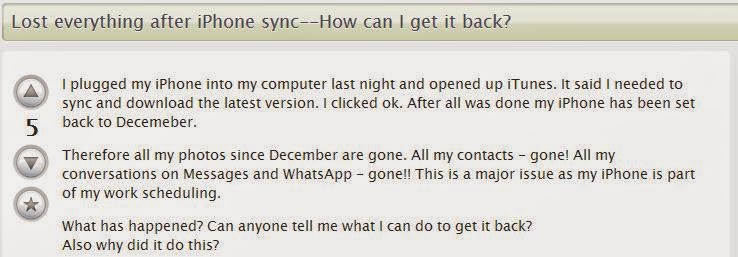
 lost iphone data after sync

7.    iPhone is Water Damaged, Broken Screen, Dropped

Your iPhone gets water damaged, its screen is broken, or dropped uncareful, and when it can turn on again but you will find your important photos and other files are lost.

iphone damaged lost data
8.    Without Any Cause

You even didn’t know what happened, but some data in your iPhone disappeared randomly.

lost iphone data no reason

These are all the common reasons would lead to your iPhone data. Our iPhone data is so fragile that if you don’t want to lose them you should backup iPhone data frequently. And don’t panic if you have lost iPhone data without backup, here is how to recover lost data from iPhone.

6/10/2014

How to Backup iPhone, iPad Data before Update iOS 8

So you couldn’t wait to update your iPhone or iPad to iOS 8 even it just beta version and found some important data like contacts, text messages, photos, notes etc were lost? Well, backup data before upgrade iOS 8 is very important. I have drawn a lesson from iOS 7 update lost data that I would do a backup every time update iOS. 

backup iphone data before update to ios 8

iTunes backup and iCloud backup are the data backup ways almost every iOS device users should know, but both of them are not the perfect way. iTunes backup file is easy to be covered as long as you sync iPhone with iTunes, the free iCloud account just allows you to store 5GB data, and the most serious point is after the restore all your files on iOS device will be covered. Then is there any way to deal well with iPhone, iPad data backup? Yes, the good way is iAny Manager tool!

Everything about iAny Manager

Produced by: Tenorshare Company
Price: $29.95 (Please follow iAny Manager on Facebook to get the latest promotion news)
Function: Mange iPhone, iPad, iPod data including backup, restore, transfer, add, delete etc.
iOS Support: iOS 8 beta/iOS 7.1/6/5/4/3, etc.
Device Support: iPhone 5S/5C/5/4S/iPad/iPod
Operating System: Windows 8.1/8/7/XP/Vista
Ease of use: no technique is required
Shortcoming: need iTunes installed

iAny Manager offers two ways to backup iPhone data before update to iOS 8.
Download and install iAny Manager on your PC, connect iPhone or iPad with PC and run program then you will get the interface as below:
iany manager

1.    Transfer iPhone Contacts, Text Messages, Photos, Note to Computer as Editable File


On the left, all the files will be listed into catalogue, mark those files you need to backup, then move the mouse to the right the upper right quadrant of program, click “Computer”, then select the saved path on your computer, and the files can be saved as .txt, .xls, .xml, vCard/VCF format. You can read and edit these data whatever you want.

2.    Backup iPhone Files to Computer like iTunes Backup File (Recommended!)


Choose the data need to backup, on the right, click “Backup” button in the list of Tools, then save the file on local computer as one backup file like iTunes backup. Click “Restore” button that you can easily to restore backup files back to iPhone, iPad after iOS 8 update.

Note: iAny Manger only supports Windows, if you are Mac users, please check out: Backup iPhone Data to Mac, or try AirDrop.