6/10/2014

How to Backup iPhone, iPad Data before Update iOS 8

So you couldn’t wait to update your iPhone or iPad to iOS 8 even it just beta version and found some important data like contacts, text messages, photos, notes etc were lost? Well, backup data before upgrade iOS 8 is very important. I have drawn a lesson from iOS 7 update lost data that I would do a backup every time update iOS. 

backup iphone data before update to ios 8

iTunes backup and iCloud backup are the data backup ways almost every iOS device users should know, but both of them are not the perfect way. iTunes backup file is easy to be covered as long as you sync iPhone with iTunes, the free iCloud account just allows you to store 5GB data, and the most serious point is after the restore all your files on iOS device will be covered. Then is there any way to deal well with iPhone, iPad data backup? Yes, the good way is iAny Manager tool!

Everything about iAny Manager

Produced by: Tenorshare Company
Price: $29.95 (Please follow iAny Manager on Facebook to get the latest promotion news)
Function: Mange iPhone, iPad, iPod data including backup, restore, transfer, add, delete etc.
iOS Support: iOS 8 beta/iOS 7.1/6/5/4/3, etc.
Device Support: iPhone 5S/5C/5/4S/iPad/iPod
Operating System: Windows 8.1/8/7/XP/Vista
Ease of use: no technique is required
Shortcoming: need iTunes installed

iAny Manager offers two ways to backup iPhone data before update to iOS 8.
Download and install iAny Manager on your PC, connect iPhone or iPad with PC and run program then you will get the interface as below:
iany manager

1.    Transfer iPhone Contacts, Text Messages, Photos, Note to Computer as Editable File


On the left, all the files will be listed into catalogue, mark those files you need to backup, then move the mouse to the right the upper right quadrant of program, click “Computer”, then select the saved path on your computer, and the files can be saved as .txt, .xls, .xml, vCard/VCF format. You can read and edit these data whatever you want.

2.    Backup iPhone Files to Computer like iTunes Backup File (Recommended!)


Choose the data need to backup, on the right, click “Backup” button in the list of Tools, then save the file on local computer as one backup file like iTunes backup. Click “Restore” button that you can easily to restore backup files back to iPhone, iPad after iOS 8 update.

Note: iAny Manger only supports Windows, if you are Mac users, please check out: Backup iPhone Data to Mac, or try AirDrop.

5/14/2014

How to Recover iPhone Data without iTunes/iCloud Backup

For some people, they have no concept about iPhone data backup until lost their precious data. And for some people who know well in data backup but still sometimes it is too late for them to backup the new files. Then, is there any way to recover iPhone data without backup? The answer is YES!

recover iPhone data without backup

Note: please Don’t write more data into your iPhone after lost files, or the lost data probably be overwritten forever.

Now, let’s begin to talk about iPhone data recovery without backup. You can choose to backup data on iTunes or backup files on iCloud so that you have two ways to recover data from backup, then how many ways can we recover iPhone files without backup? For the time being, there is only one. And the only way is to use a third-party data recovery tool. You can found lots of iPhone data recovery software on the internet and some even claim it is free. I have tested 8 recovery tools and draw the conclusion that Tenorshare iPhone Data Recovery is the best.

Key features of Tenorshare iPhone Data Recovery


  • Retrieve iPhone data without backup
  • Restore iPhone data from iTunes backup
  • Restore iPhone data from iCloud backup
  • Recover iPhone data caused by accidentally deletion, iOS update, factory reset, jailbreak etc.
  • Support all the iPhone models including iPhone 5s/5c/5/4S/4 and iOS 7.1


  • So here's a look at how to retrieve iPhone data without iTunes or iCloud backup step by step.

    Step 1

    Download iPhone data recovery software on your computer and install it. Mac users, click here.
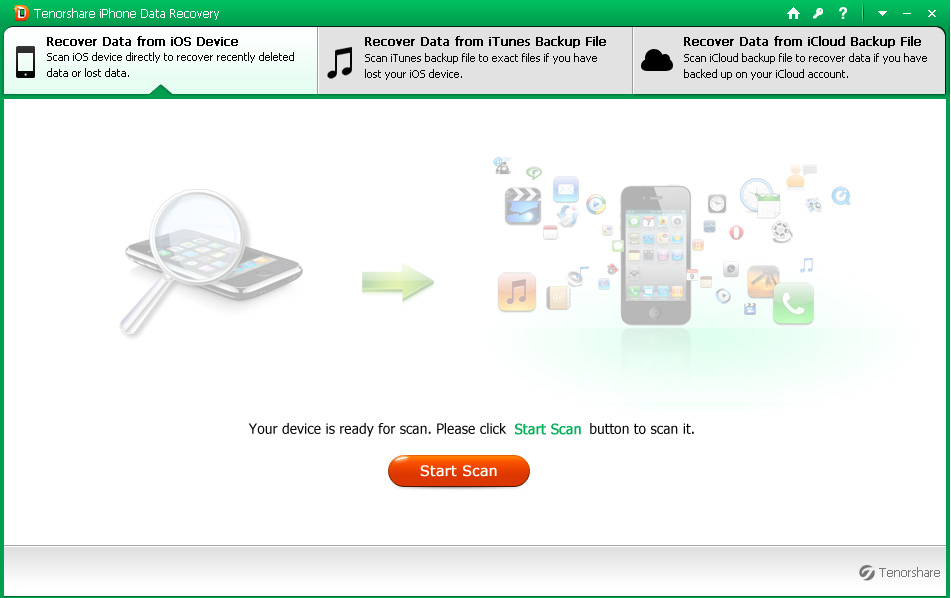
    Run program, you will get the interface as below (Take Windows version for example).
     Tenorshare iPhone data recovery

    Step 2

    Choose the first recovery mode “Recover Data from iOS Device” and connect your iPhone with PC via data cable. The program will distinguish your phone in seconds and begin to scan all the files in iPhone memory. The scan time is determined by how many files in your iPhone. When the scanning is over, you can preview files before recovery.

    preview iPhone data

    Step 3

    Mark data like contacts, text messages, photos, notes, whatsapp, tango and more file you need to recover, click “Recover” button to save them on your computer.

    Although it is pretty easy to recover data without iPhone backup, someone still can’t get back all the lost data for it is hard to avoid writing more data into iPhone before data recovery. Therefore, backup iPhone data with iTunes and iCloud is much important!

    4/16/2014

    How to Restore iPhone Data from iCloud Without Reset and Save Time!

    restore iPhone data from icloud backup
    If you use iCloud to backup your iPhone files, here I have a question, do you know how many ways to restore iCloud backup? I have done a small survey around my friends and almost all of them are still follow the guide provided in Apple Support website. Well, that's understandable, if you don’t initiative to find the new way, you may miss some fantastic way.

    In this guide, I want to introduce a new way about how to restore iPhone data from iCloud backup. More precisely, this new way actually occurs for some time and received a high evaluation. It solves two major problems which troubled most people when using the Apple guide. Then, what the effective method is? This is the third recovery mode of Tenorshare iPhone Data Recovery- “Recover Data from iCloud Backup File”.

    What's the advantage of third recovery mode of iPhone Data Recovery?
    First, it allows you to restore iCloud backup without reset.
    Second, you can selectively restore the files you need which will save you a lot of time.
    Moreover, it supports all iOS devices like iPhone 5S/5C/5/4S/4 and iPad, iPod Touch. Without further ado, let’s start!

    What You Need:
    A computer connected with internet. Windows and Mac are OK.
    Correct iCloud account and password.

    Quick Note: Please don’t connect your device to PC during the process.

    Here are the steps to restore iPhone from iCloud backup on computer:
    Step 1: Go to http://www.any-data-recovery.com/product/iphone-data-recovery.html download iPhone data recovery program. Mac users, click here.

    Step 2: Install program on your computer and launch it. Switch to the recovery mode “Recover Data from iCloud Backup File”. Then you can get the interface as below:

    sign in icloud account

    Step 3: Enter your Apple ID and password, and then you can see all the iCloud backups you have made display. Check the iCloud backup file need to restore file, click “Next” to start download this backup file.

    Step 4: When the download is end, this software will scan and display all the files in backup quickly. Preview lost files by click the list on the left side. Mark those data like contacts, photos, text messages, notes and more you need to recover, and click “Recover” button.

    That’s it. Recovering iPhone data from iCloud backup is pretty easy! If you have any problems or suggestions, welcome to leave comment below.

    3/17/2014

    Tenorshare Upgrades iPhone Photo Recovery 4.0.0.0 to Be the World’s 1st Software Supports to Recover Lost iPhone Photos

    NEW YORK, N.Y.,  March, 18th, 2014 - Tenorshare Inc., a leading global provider of professional data recovery software, today announced that Tenorshare iPhone Data Recovery and Tenorshare iPhone Data Recovery for Mac improve to recover lost and deleted iPhone photos. It is the world’s 1st software that overcomes the technique obstacles to support to recover lost iPhone photos without backup. Only a few seconds, it will help you find hundreds of precious images. The scanning speed is much quicker than you can image.
    Tenorshare iPhone Photo Recovery 4.0.0.0
    More and more people are fond of taking photos with iPhone for its remarkable camera feature. But losing photos from iPhone is really painful because we have not a second chance to take the same photos. Worse still, no other iPhone data recovery software supports to recover lost photos. This is why Tenorshare improves iPhone Data Recovery to recover lost and deleted iPhone photos. No matter for what reasons photos get lost -- accidental deletion, iOS 7.1 update/jailbreak or factory reset, they can be recovered without any issues.

    The benefits you can gain from upgraded Tenorshare iPhone Data Recovery:
    •Recover all photos included on your iPhone -- Camera Roll, Photo Library, Photo Stream
    •Recover App Photo like WhatsApp, Instagram, Flickr, iPhoto, iMove,Kindle etc.
    •Recover lost photos in crystal-clear quality without any damage
    •3 easy steps to recover photos in BMP format: scan – preview – recover
    •Extract photos from iTunes or iCloud backup file
    •Compatible with the latest iOS 7.1 and support iPhone 5s/5c/5/4s/4/3GS

    “Overtaking any other competitors, Tenorshare is the first developer to allow users to recover lost photos directly from iPhone without backup. Our engineers overcame technical challenges to make iPhone photo recovery available and adopted the most advanced technology to let the recovered iPhone photos in high clarity.” Said Mike Lee, the CEO of Tenorshare.

    Besides photos, Tenorshare iPhone Data Recovery also recover contacts, SMS, notes, WhatsApp messages, WhatsApp attachments, voice memos, reminders, call history, SMS attachments, Safari bookmarks, videos and other documents.

    More information:
    http://www.tenorshare.com/products/iphone-data-recovery-win.html
    http://www.tenorshare.com/products/iphone-data-recovery-mac.html

    About TenorshareTenorshare is one of the world's top software companies providing iPhone utilities, data tools, system utilities, PDF tools, and video tools. Boasting the most comprehensive and innovative software, we've built a reputation for delivering efficient and easy-to-use solutions.

    ### MEDIA ONLY CONTACT:
    Angel Harrison
    Tenorshare Co., Ltd.
    press@tenorshare.com
    +86-0755-86229532

    Step by step guide for how to recover iPhone photos with Tenorshare iPhone data recovery:
    http://iphone-ipad-ipod-data-recovery.blogspot.com/2013/04/recover-photo-from-iphone.html

    Related Posts:
    Lost photos on iPhone 5C? Click on iPhone 5C data recovery
    iPhone 5S deleted photos? Check out iPhone 5S data recovery

    3/07/2014

    iPhone 5C Data Recovery-The Best Way to Recover Data on iPhone 5C with/no Backup

    Lost data on iPhone 5C is a painful thing to most iPhone users, and things happened in such a flash that you have no time to make a backup. When these mishaps do occur, anything we can do with iPhone 5C data recovery?

    First of all, let’s learn how iPhone 5C data could lose:
    -Accidentally deletion- it is said the most common reason.
    -Factory restores your iPhone.
    -Your iPhone was broken, water damaged.
    -Update device to iOS 7 or downgrade to iOS 6.
    -Stuck in recovery or reboot loop.
    -iPhone was infected by virus.
    -And more reasons…

    how to recover data from iPhone 5C
    Although we know these operations could cause notes loss, it is hard to avoid it. Do not be glum, here is a good news- the lost notes can be recovered easily with the help of iPhone Data Recovery. Yet, the iPhone data recovery program cannot recover your files if you have done two things as following:
    One, write more data into your iPhone after lost data, and just the new data overwritten the file you lost.
    Two, sync iPhone with iTunes and the last iTunes backup file was covered.

    Therefore, find the solution ASAP once you found lost important data on iPhone 5C. What if you have done the two things above? Don’t give up, we cannot guarantee your lost data must be overwritten. You should also try the way below if the file means a lot to you.

    Download data recovery software for iPhone 5C to get start.
    iPhone Data Recovery for Windows      iPhone Data Recovery for Mac

    Method 1: How to Recover iPhone 5C Data from iTunes Backup


    First, make sure you have synced all your data on iTunes before lost it. After you have synced iPhone with iTunes, all the files on your iPhone will be backed up to iTunes and save as .sqlitedb file which cannot view directly or write. Then you need iPhone data recovery tool to extract data from iTunes backup files as visual files.

    Simply following these instructions:
    Step 1: Install iPhone 5C data recovery software on your computer/Mac and launch it. Click “Recover Data from iTunes Backup File” mode and you can see all the backup files you have made in the computer you are using now. Check your iPhone backup file and click “Start Scan” to begin.
    Step 2: When the scanning is over, all the items will be presented as catalog. Preview those data before lost it.
    Step 3: Mark those files you need like photos, text messages, notes, whatsapp messages, contacts and more, then hit “Recover” button to extract them to computer.


    Method 2: How to Restore iPhone 5C Data without Backup


    For those who do not have a backup file or the backup file have been covered, please select the recovery mode “Recover Data from iOS Device”.

    In this way, you have to connect your iPhone with computer. Once connection is successful, the program will start to scan your iPhone 5C automatically, and then the last steps are the same as the step 2 and step 3 of the method 1.

    For more information about how to retrieve iPhone 5C files, please visit:
    http://www.any-data-recovery.com/topics/iphone/iphone-5c-data-recovery.html

    Warm prompt: It is very important to backup your iPhone data from time to time.

    1/14/2014

    How to Retrieve Deleted WhatsApp Messages on iPhone 5S/5C/5/4S/4/3GS Free

    recover whatsapp messages iPhone
    Is It Possible to Recover Deleted WhatsApp Messages iPhone? 
    “The only drawback of iPhone is no Recycle Bin as PC!” One of my friends said it to me after deleted his WhatsApp messages by mistake. Oh, yeah, it is no good. But having said that, all is not lost and there is hope.

    If you have learned that the iPhone photos, text messages, contacts etc. still can be retrieved after deleted or lost, then likewise, you should believe that WhatsApp messages which acts as file exist on iPhone can also be able to recovered even without recycle bin.

    What Caused Your iPhone WhatsApp Data Loss?
    Can’t wait to know how to get your messages back? Be patient. To avoid your data lost again, also as a reminder for the iPhone readers who without losing data and just read this article as a tip, I collected a series of cases that would cause iPhone WhatsApp data loss, let’s have a look at it first:

    Deletion: The most common situation. For the most part, it is you deleted it accidently, as well as other guys. Sometimes, your files would be deleted by iPhone for no reason.
    Factory Restore: Most of all, you have to factory reset your iPhone back to normal even you know it will erase all your data.
    iOS Update or Downgrade: The act of updating your device to iOS 7 or downgrading to iOS 6 may lead to data loss.
    Jailbreak: The minority iPhone users lost all their data because the inopportune operation on iOS 7 untethered jailbreak.
    iPhone damaged: Had your iPhone stolen, water damaged, and crash, broken.

    Let’s get into the stats then!

    Part 1: How to Recover WhatsApp Chat History on iPhone from iCloud/iTunes Backup


    Apple offers two ways to backup iPhone, iPad, iPod Touch data, that’s iCloud and iTunes. If you have backed up your WhatsApp data with Apple backup, then you should know the backup knowledge more or less. Hence long story short, and let me explain how to restore WhatsApp from backup now.

    # Retrieve iPhone WhatsApp Messages from iCloud Backup

    You cannot backup WhatsApp files to iCloud if your WhatsApp version is lower than 2.10.1 that if you back up fails please check your WhatsApp version. Once you have successfully made backup, you can view the chat history backup file doing that: WhatsApp Settings > Chat Settings > Chat Backup.

    Here is what you need to do to restore WhatsApp backup:
    1. Be sure that your chat history has been backed up in iCloud.
    2. Delete and reinstall WhatsApp.
    3. Verify your phone number
    4. Then you just need to follow the on-screen prompts to complete the restore.

    # Recover iPhone WhatsApp Messages from iTunes Backup

    If you manage your iPhone file with iTunes, then every time you sync your iPhone, the files like WhatsApp messages, contacts, and photos are automatically updated to computer at the same time, then the first thing is stop syncing your iPhone until get your files back.

    Follow those instructions:
    * Connect iPhone with the computer of which has the backup file.
    * Run iTunes.
    * Erased or new iPhone will be prompted restore from backup.
    * Else, please under DEVICES in the left menu and control-click on your iPhone and select “Restore From Backup”.
    * Stay in the backup file contains WhatsApp messages, click “Restore”.

    Part 2: How to Restore WhatsApp Chat History on iPhone without Backup


    No backup or the backup file has been updated? Don’t worry. Some data recovery programs have the ability to recover lost WhatsApp messages from iPhone directly. Recently, some iPhone data recovery programs have been added the WhatsApp recovery function. However, you have to purchase this iPhone data recovery program to use, even if you needn’t to recover other files like contacts, photos, notes. 

    The good news is the famous data recovery company Tenorshare has launched a tool called “Free WhatsApp Recovery” specific for WhatsApp messages recovery, and this is the most recommended. The most important, it is totally free!
    whatsapp recovery
    No technique requires. How easy was that? Just need to follow 3 pretty simple steps below:
    SETP-1: Download WhatsApp Recovery on your computer/Mac and install it. Launch program and connect your iPhone with PC. Then your iPhone will be will detected automatically.
    SETP-2: All the WhatsApp messages and contacts will be scanned and are displayed after few seconds. Preview the files and select the messages one by one or just select all.
    SETP-3: Mark those chat history you want and click “Export” button to save them to your computer.
    Done!

    Moreover, WhatsApp Recovery also be helpful for those even though do not have the need of recovery. It is a recovery tool as well as backup tool which help you to back up WhatsApp files to local computer!

    1/03/2014

    How to Get Back Data on iPhone After Factory Restore

    Above all, let see two questions about iPhone data after restore:
    Q 1: Will I lose all my data if I restore my iPhone?
    Q 2: How do I recover lost data from iPhone after accidental restore?

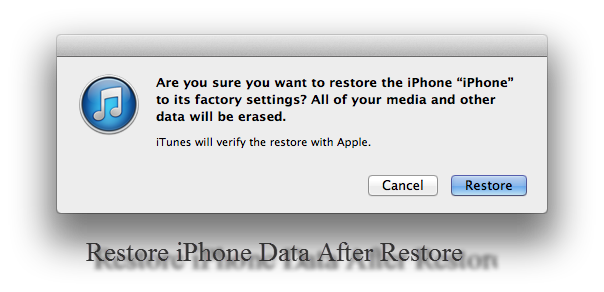
    Obviously, question 2 has answered the question 1. Yeah, restoring your iPhone will delete everything on it. Therefore, you should backup data before reset your iPhone so that you can easily to restore iPhone from backup. What if you didn’t know the fact that all the data will lose after reset until you restore your iPhone? Loose, loose! This article will tell you how to get back data on iPhone after restore.
    recover iphone data after factory reset
    As you may know, there are three ways to recover iPhone data on any case:
    -Restore iPhone data on iCloud;
    -Restore iPhone data from iTunes backup;
    -Recover data without iPhone backup
    iCloud and iTunes are two ways for iPhone backup provided by Apple, so the first and the second way can be found from support.apple.com. However, Apple cannot help you with the third way. In the following, what you will learn is how to recover iPhone data after factory reset without backup.

    iPhone Data Recovery program is the only approach you can adopt to recover data from iPhone directly. I have tested several programs and draw a conclusion that Tenorshare iPhone Data Recovery http://www.any-data-recovery.com/product/iphone-data-recovery.html is the best one.

    Features of Tenorshare iPhone Data Recovery:
    *Compatible with iPhone 5S/5C/5/4S/4/3GS, all Windows OS/Mac and support iOS 7.
    * Able to recover 12 types of files on iPhone.
    * Both can recover iPhone data without backup and restore data from iTunes backup.
    *Preview iPhone data before recovery and restore files selectively.
    * Retrieve iPhone data caused by factory restore, deleted, iOS 7 update/jailbreak etc.

    Screenshot:
    screenshot of iphone data recovery

    Here's what you need to recover iPhone data after restore with Tenorshare iPhone Data Recovery tool.

    SETP 1:
    Download program on your computer and install it. Run program and connect your iPhone with computer via data cable. You will get the messages as “Your device is connecting, please wait…” once connect iPhone with PC, and when the detection is done, click “Start Scan” to scan lost files.

    SETP 2:
    After the scan, all the data lost from your iPhone will be present as separate groups like Call History, Contacts, Messages and more. Choose the catalog to preview the lost files.

    SETP 3:
    Mark those files you want to get back from restore and save them to your computer by simply clicking “Recover” button.

    This is the whole process to retrieve iPhone data after restore, how easy was that?