1/14/2014

How to Retrieve Deleted WhatsApp Messages on iPhone 5S/5C/5/4S/4/3GS Free

recover whatsapp messages iPhone
Is It Possible to Recover Deleted WhatsApp Messages iPhone? 
“The only drawback of iPhone is no Recycle Bin as PC!” One of my friends said it to me after deleted his WhatsApp messages by mistake. Oh, yeah, it is no good. But having said that, all is not lost and there is hope.

If you have learned that the iPhone photos, text messages, contacts etc. still can be retrieved after deleted or lost, then likewise, you should believe that WhatsApp messages which acts as file exist on iPhone can also be able to recovered even without recycle bin.

What Caused Your iPhone WhatsApp Data Loss?
Can’t wait to know how to get your messages back? Be patient. To avoid your data lost again, also as a reminder for the iPhone readers who without losing data and just read this article as a tip, I collected a series of cases that would cause iPhone WhatsApp data loss, let’s have a look at it first:

Deletion: The most common situation. For the most part, it is you deleted it accidently, as well as other guys. Sometimes, your files would be deleted by iPhone for no reason.
Factory Restore: Most of all, you have to factory reset your iPhone back to normal even you know it will erase all your data.
iOS Update or Downgrade: The act of updating your device to iOS 7 or downgrading to iOS 6 may lead to data loss.
Jailbreak: The minority iPhone users lost all their data because the inopportune operation on iOS 7 untethered jailbreak.
iPhone damaged: Had your iPhone stolen, water damaged, and crash, broken.

Let’s get into the stats then!

Part 1: How to Recover WhatsApp Chat History on iPhone from iCloud/iTunes Backup


Apple offers two ways to backup iPhone, iPad, iPod Touch data, that’s iCloud and iTunes. If you have backed up your WhatsApp data with Apple backup, then you should know the backup knowledge more or less. Hence long story short, and let me explain how to restore WhatsApp from backup now.

# Retrieve iPhone WhatsApp Messages from iCloud Backup

You cannot backup WhatsApp files to iCloud if your WhatsApp version is lower than 2.10.1 that if you back up fails please check your WhatsApp version. Once you have successfully made backup, you can view the chat history backup file doing that: WhatsApp Settings > Chat Settings > Chat Backup.

Here is what you need to do to restore WhatsApp backup:
1. Be sure that your chat history has been backed up in iCloud.
2. Delete and reinstall WhatsApp.
3. Verify your phone number
4. Then you just need to follow the on-screen prompts to complete the restore.

# Recover iPhone WhatsApp Messages from iTunes Backup

If you manage your iPhone file with iTunes, then every time you sync your iPhone, the files like WhatsApp messages, contacts, and photos are automatically updated to computer at the same time, then the first thing is stop syncing your iPhone until get your files back.

Follow those instructions:
* Connect iPhone with the computer of which has the backup file.
* Run iTunes.
* Erased or new iPhone will be prompted restore from backup.
* Else, please under DEVICES in the left menu and control-click on your iPhone and select “Restore From Backup”.
* Stay in the backup file contains WhatsApp messages, click “Restore”.

Part 2: How to Restore WhatsApp Chat History on iPhone without Backup


No backup or the backup file has been updated? Don’t worry. Some data recovery programs have the ability to recover lost WhatsApp messages from iPhone directly. Recently, some iPhone data recovery programs have been added the WhatsApp recovery function. However, you have to purchase this iPhone data recovery program to use, even if you needn’t to recover other files like contacts, photos, notes. 

The good news is the famous data recovery company Tenorshare has launched a tool called “Free WhatsApp Recovery” specific for WhatsApp messages recovery, and this is the most recommended. The most important, it is totally free!
whatsapp recovery
No technique requires. How easy was that? Just need to follow 3 pretty simple steps below:
SETP-1: Download WhatsApp Recovery on your computer/Mac and install it. Launch program and connect your iPhone with PC. Then your iPhone will be will detected automatically.
SETP-2: All the WhatsApp messages and contacts will be scanned and are displayed after few seconds. Preview the files and select the messages one by one or just select all.
SETP-3: Mark those chat history you want and click “Export” button to save them to your computer.
Done!

Moreover, WhatsApp Recovery also be helpful for those even though do not have the need of recovery. It is a recovery tool as well as backup tool which help you to back up WhatsApp files to local computer!

1/03/2014

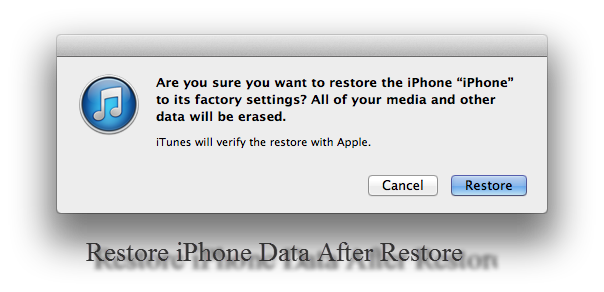
How to Get Back Data on iPhone After Factory Restore

Above all, let see two questions about iPhone data after restore:
Q 1: Will I lose all my data if I restore my iPhone?
Q 2: How do I recover lost data from iPhone after accidental restore?

Obviously, question 2 has answered the question 1. Yeah, restoring your iPhone will delete everything on it. Therefore, you should backup data before reset your iPhone so that you can easily to restore iPhone from backup. What if you didn’t know the fact that all the data will lose after reset until you restore your iPhone? Loose, loose! This article will tell you how to get back data on iPhone after restore.
recover iphone data after factory reset
As you may know, there are three ways to recover iPhone data on any case:
-Restore iPhone data on iCloud;
-Restore iPhone data from iTunes backup;
-Recover data without iPhone backup
iCloud and iTunes are two ways for iPhone backup provided by Apple, so the first and the second way can be found from support.apple.com. However, Apple cannot help you with the third way. In the following, what you will learn is how to recover iPhone data after factory reset without backup.

iPhone Data Recovery program is the only approach you can adopt to recover data from iPhone directly. I have tested several programs and draw a conclusion that Tenorshare iPhone Data Recovery http://www.any-data-recovery.com/product/iphone-data-recovery.html is the best one.

Features of Tenorshare iPhone Data Recovery:
*Compatible with iPhone 5S/5C/5/4S/4/3GS, all Windows OS/Mac and support iOS 7.
* Able to recover 12 types of files on iPhone.
* Both can recover iPhone data without backup and restore data from iTunes backup.
*Preview iPhone data before recovery and restore files selectively.
* Retrieve iPhone data caused by factory restore, deleted, iOS 7 update/jailbreak etc.

Screenshot:
screenshot of iphone data recovery

Here's what you need to recover iPhone data after restore with Tenorshare iPhone Data Recovery tool.

SETP 1:
Download program on your computer and install it. Run program and connect your iPhone with computer via data cable. You will get the messages as “Your device is connecting, please wait…” once connect iPhone with PC, and when the detection is done, click “Start Scan” to scan lost files.

SETP 2:
After the scan, all the data lost from your iPhone will be present as separate groups like Call History, Contacts, Messages and more. Choose the catalog to preview the lost files.

SETP 3:
Mark those files you want to get back from restore and save them to your computer by simply clicking “Recover” button.

This is the whole process to retrieve iPhone data after restore, how easy was that?

12/25/2013

How to Backup iPhone Data with iTunes and iCloud Before Jailbreak iOS 7

Take your time when you get the news that the Evasi0n team released iOS 7 untethered jailbreak that you have been looking forward for a long time. In order to avoid making mistake, you must be sufficiently prepared before jailbreak your iPhone, iPad, iPod Touch that remember to read the notes emphasized by Evasion. Below is the first note from “Important! Read me!”

Backup your device using iTunes (or iCloud) before using evasi0n. If something breaks, you'll always be able to recover your data.

I know someone may do not regard this item as a matter of any importance, yet for some of those who have the experience of jailbreak without making any backup was a pity. Yeah, if you operate it properly, everything is OK, but who can guarantee? Anyway, there is no harm to read this guide to learn how to backup iPhone data with iTunes and backup iPhone data on iCloud before Jailbreak iOS 7 which will help you perform iPhone data recovery with ease.

1. How to Backup Data with iTunes Before Jailbreak iOS Device on iOS 7


iTunes is the best way to manage your iPhone, so please don’t limit iTunes as an digital media player application. You can use iTunes to create a backup file including photos, videos, notes, songs, SMS, contacts and more stored on your computer, this is fairly basic.

Start to learn how to manually backup your device using iTunes:
# Check whether your iTunes version is the latest (Help> Check for Updates) and ensure that iCloud is turn off
# Connect your iPhone or iPad, iPod Touch to your PC via cable.
# Launch iTunes. Remove to the left of iTunes, and mark your device, then right-click (or Ctrl-click) on your device, select Back up.
backup iphone data with iTunes
After the backup is completed, you can check the new backup file on the location of your computer as below:
Mac: ~/Library/Application Support/MobileSync/Backup/
Windows XP: \Documents and Settings\(username)\Application Data\Apple Computer\MobileSync\Backup\
Windows Vista or 7: \Users\(username)\AppData\Roaming\Apple Computer\MobileSync\Backup\


2. How to Backup Data on iCloud Before Jailbreak iOS Device on iOS 7


iCloud is also provided by Apple, and the free users have 5G limitation but it still is one of the best way to backup iOS device.
3 simple step instructions to make an iCloud backup:
Step 1: For iCloud is based on cloud storage, be sure your device is connected to a Wi-Fi network before backup.
Step 2: Go to Settings > iCloud
Step 3: Tap the last item Storage & Backup, then hit “Back Up Now”.
backup iphone data on iCloud
It's as simple as that. It will end quickly if you do not have too much data on your device.

Another Tip:
What if you do not want to backup your data neither with iTunes nor iCloud, but like to backup iPhone data to computer on iOS 7? To do it, see How to Back up iPhone Data to Computer without iTunes or iCloud.

What are you waiting for? Just begin to backup your iPhone/iPad/iPod Touch data and then Jailbreak your device on iOS 7 without any worries, free your iPhone and Merry Christmas!

12/18/2013

How to Recover Calendar Events on iPhone The Smart Way

iPhone calendar data lost problem is seldom happened on iPhone users that you are less likely to get the straightforward way on the internet for iPhone calendar recovery once you accidentally deleted calendar contents on iPhone or Phone calendar erased events. And as such, the purpose of the article is to specifically reveal the step-by-step ways that you can restore deleted iPhone calendars.

Solution 1: How to Restore iPhone Calendar from iCloud Backup

restore iPhone calendar event

If you previously synced your iPhone calendar with iCloud, follow these:

# 1: Be sure iPhone is connected with Wi-Fi.
# 2: Tick “Restore From iCloud Backup” option on your iPhone setup.
# 3: Enter account and password to login iCloud.
# 4: Choose your backup need to retrieve calendar event and restore to your iPhone.

The whole process cost a large amount of electricity so you must plugged iPhone into the charger at first.

Solution 2: How to recover calendar from iPhone without backup


We are not ruling out the situation of no iCloud or iTunes backup. In this case, iPhone Data Recovery program is the smart way to recover deleted calendar from iPhone without backup. Tenorshare iPhone Data Recovery program allows you to find lost calendar event on iPhone 6, 6 Plus, 5S, 5C, 5, 4S, 4 and 3GS directly with 3 simple steps. Moreover, text messages, contacts, photos, notes, call history, WhatsApp messages and other files also are able to restore by the same token. 

See the full instruction:

Step 1: Click here to download and install Tenorshare iPhone Data Recovery tool and run it. Stay in the recovery mode of “Recover Data from iOS Device” and connect your iPhone with computer.

Step 2:
For iPhone 5S/5C/5/4S, click “Start Scan” button to scan files from phone.
For iPhone 4/3GS, get into DFU mode to scan lost data by following the steps below:
>>> Hold Home and Power button at the same time for 5 seconds. If your iPhone has been powered off already, click "Start" button to enter DFU directly.
>>> Keep holding Home and Power button until the device screen turns to black.
>>> Release Power button and keep holding Home for 10 seconds.
After enter DFU mode successfully, the tool will automatically scan your iPhone

Step 3: All lost files will be found and displayed in list after the scan. Check “Calendar” catalogue on the left to preview lost calendar entries. Mark the calendar events need to restore one by one or just click “Check All” if you have such a need, then click “Recover” button to save the calendar on your computer.

Similarly, restore iPhone calendar from iTunes backup by means of the second recovery “Recover Data from iTunes Backup File”.

extended reading
Calendar icon is gone from the iPhone menu, how to get it back?

iPhone icon missing for no reason or you thought you accidentally deleted it. Actually, it is impossible to delete built-in apps on iPhone.

Generally, reset Home screen layout, your disappeared calendar icon will show up again.
Follow the instructions: Settings > General > Reset > Reset Home Screen Layout.

If that doesn't work, try to restart your iPhone.
Follow these steps: Hold down the Sleep/Wake button, then wait for the Slide to power off message to appear> Slide to turn off> wait a couple of seconds and then press and hold the Sleep/Wake button again until the Apple logo appears.

12/10/2013

iPhone 5S Data Recovery- How to Recover Contacts, Photos, Texts, Notes, WhatsApp after Deleted or Lost

How to recover data from an iPhone 5S? If you Google search this question, yeah, you can find lots of solutions for iPhone data recovery but most of them are special for iPhone 5, iPhone 4S and lower version. That is normal, because it is less than 3 months since the iPhone 5S released. Yet, there has been part of iPhone 5S users lost their important files and want to find it back, and   this article will present the most practical tricks that focus on iPhone 5S data recovery.
recover data on iPhone 5S
Indeed, one problem can be fixed many ways, but what we need is the fastest and really helpful one, that’s why I highly recommend you guys use Tenorshare iPhone Data Recovery program to recover data from iPhone 5S.

6 Features to Explain Why Tenorshare iPhone Data Recovery is Worthy of Being Chosen:
Feature 1: Not only support iPhone 5S, but iPhone 5C, 5, 4S, 4, 3GS, even iPad and iPod Touch.
Feature 2: Recover lost data caused by different reason like accidentally deleted, factory restore, iOS 7 upgrade/downgrade iOS 6, iPhone broken/water damage/stolen and more.
Feature 3: 12 types of iPhone files as contacts, photos, text messages, notes, WhatsApp files etc. can be recovered.
Feature 4: Restore data from iTunes backup file and also recover iPhone 5S data without backup.
Feature 5: Preview and selective recover files.
Feature 6: Backup/transfer iPhone 5S data to computer.
Feature 7: Very simple and easy, no tech skills are required.

In the following, I will take how to recover iPhone 5S data without backup for example, show you how easily to get back lost files on iPhone 5S.

Preparation:
# Download and install iPhone data recovery software on your computer/Mac.
# iPhone data cable

First Step:
Run program and you will see two recovery modes on the interface as below: “Recover Data from iOS Device” and “Recover Data from iTunes Backup File”. For recovering data from iPhone 5S directly, select the first recovery mode.

recover data from iPhone 5S
Then:
Connect your iPhone with computer via cable and click “Start Scan” after iPhone is recognized. It will spend some time to scan lost files, be patient. More files in iPhone, more time it need. When the scanning is over, you can preview all the lost files by clicking catalogue on the left.

Your Final Step:
Check the files need to retrieve, here you can select all files, or select the specific file and even the deleted files, then click “Recover” to save them on your computer.

Likewise, if you need to extract iPhone 5S pictures, text messages, phone number, notes etc. from iTunes backup file, just gently choose “Recover Data from iTunes Backup File” as recovery mode and following the instruction which similar to above steps to complete iPhone 5S recovery.

Please don’t hesitate to leave a comment below if you have a question.

11/28/2013

Tenorshare Black Friday 2013: Discount Up to 50% Off

CALIFORNIA, Nov. 28th, 2013 –Tenorshare, a renowned software innovator launched its Black Friday Promotion at the beginning of Christmas shopping season. The promotion will be hold on from Nov.29 to Dec. 10 and provides the biggest ever discount (up to 50% off) for as much as 14 of its products and about 9 bundles which mainly deal with data recovery and other problems.

Getting tired of waiting in the long line or driving a long way to get your desired products? With Tenorshare’s Black Friday Promotion, you simply visit Tenorshare promotion page online and can find Tenorshare's best sellers – the companions for your iPhone, laptop, camera: iOS Devices Data suite at a surprisingly 50% discount and the top data recovery tool, Data Rescue Family for Windows at totally 45% discount, etc. This is really a "now or never" chance. Just pick a wonderful gift for friends or family members while listening to Pink and Taylor Swift. Now let’s take a look at some exciting offerings in Tenorshare’s Black Friday Promotion.

iOS Devices Data Suite -- Best seller of Tenorshare, easy-to-use tools for iOS users to recover and backup data on iPhone 5s/5c/5/4S/4, iPad Air/iPad mini 2/iPad 4/3/2/mini, iPod Touch 5/4 and previous models.

Data Rescue Family for Windows -- Top data recovery tools to recover deleted, formatted or inaccessible photos, videos, audios, documents on PC, hard drive, memory card and other portable devices.

iTunes Backup Rescue Bundle -- Excellent iTunes helpers to recover lost or deleted contacts, call history, text messages, photos, notes, etc. from iTunes backup file and unlock forgotten  iTunes backup password.

Don’t miss a single deal at
http://www.any-data-recovery.com/promotion/black-friday-deals.html

Besides the Black Friday Promotion, Tenorshare also provide a piece of free software ReiBoot – free iOS Reboot software to enter/exit recovery mode with one click. For more details about ReiBoot you can visit

Tenorshare ReiBoot for Windows: http://www.any-data-recovery.com/product/free-iphone-ipad-ipod-reboot.html
Tenorshare ReiBoot for Mac: http://www.any-data-recovery.com/product/free-iphone-ipad-ipod-reboot-for-mac.html

About Tenorshare
Tenorshare Co., Ltd. is the leading PC utility and multimedia software supplier dedicated to delivering various users excellent tools in the field of data recovery and operating system maintenance. The innovative and customer-focused software developer has developed a range of award-winning software, including software for data recovery, Windows system recovery, data backup and for PC users of both Windows and Mac worldwide. For more information about Tenorshare and its products, please visit www.any-data-recovery.com.

Press Contact 
Tenorshare Software
press#any-data-recovery.com (replace # with @).

10/22/2013

How to Recover Data on iPad Air and iPad Mini 2-Better to Know This Earlier!


iPad Air, iPad Mini 2 data recovery
People may surprise to read this article because Apple just releases iPad Air and iPad Mini 2 today, it is necessary to learn how to recover data from iPad now? Well, let me explain.

The first thing I want to tell you here is better to backup your iPad Air/Mini 2 data from time to time, for you can easier to get lost iPad data from backup and reduce the loss. I have been flooded with requests for help from iPad users who lost data, however most people didn’t have a backup. Usually there are three ways to backup iPad data: iTunes, iCloud and third-party backup tool, you can find the detailed guide on the internet.

Then, you must write some new data into iPad, such as photos, notes when get the iPad Air or iPad Mini 2, and it is possible that you deleted some important data by mistake or lost iPad data by inopportune operation and want to get it back. If you have read this article before lost iPad files, you know the lost data is can be retrieved that you won’t give up. Besides, stop writing data into iPad and don’t sync iPad with iTunes until get lost file back or the lost data maybe covered that it will lost forever. That’s why I write this article at the first time.

In the following, I'll take a step-by-step approach to explain how to recover data on iPad Air and recover data on iPad Mini 2 from iTunes backup with iPad data recovery software. Do not have a backup? Click “recover iPad data without backup” for the solution.

Tenorshare iPad Data Recovery program allows you retrieve lost or deleted notes, photos, videos, contacts and more files on iPad Air, iPad Mini 2 with/no backup easily and it also support the iPad 2, iPad Mini, iPad 3, iPad 4 and iPad 1. Download iPad Data Recovery program from http://www.any-data-recovery.com/product/ipad-data-recovery.html and follow 3 steps to perform iPad data recovery from backup.

Step 1: Install iPad data recovery tool on your computer after download and run it. You can see the interface below:
iPad data recovery program for iPad Air, iPad Mini 2

Then, choose “Recover Data from iTunes Backup File” as recovery mode. All the backup files on your computer will be displayed. Hit the iPad Air/iPad Mini 2 backup you need to restore data, and then click “Start Scan”.

Step 2: The less files the scanning time is shorter. When the scanning is over, preview the lost data by clicking the catalogue on the left.

Step 3: Check the files you want to get it back and click “Recover” to save them on your computer.

This is how to recover iPad Air/ iPad Mini 2 data from iTunes backup file, and “Recover Data from iPad” recovery mode enables you to retrieve iPad files without backup.

Moreover, have you ever noticed that iPad data recovery program not only a recovery tool, but also a third-party backup tool?

Also see:
* How to recover photos from iPad
* How to retrieve delted notes on iPad