9/21/2015

iPhone 6 Plus on iOS 9 Not Charging, How to Fix it

We all know that iPhone is a much popular mobile phone brands. It is loved by most mobile phone users.  So when your iPhone 6 plus cannot properly charged, how can you deal with that problem?

iPhone 6 plus recharged into the point how to do


One of the methods is that you just need to install the "Unauthorized Lightning Cable Enabler", any Lightning lines (including knockoff) are able to make your iPhone6 plus charging.
How to install:
Step1: First, the device must have been jailbroken, open Cydia first enter the “Management” – “Software Sources“ – “Edit” – “Add” to add a new source address.
Step2: And then searching for Unauthorized Lightning Cable Enabler in the “search”.
Tip: If you can’t search Unauthorized Lightning Cable Enabler, you can enter Cydia- “change” - Click on the upper left corner Refresh - re-search the plugin.
Step3: After entering the top right corner of the “installation“, then click ”OK“, it will automatically start the installation.

The common situations and solutions for iPhone 6 plus not charing


Situation1: As usual we are accustomed to the phone stuck in his trouser pockets, at the bottom of the phone's charging port easily into the ash, thereby causing the interface and the power cord is bad. So when the phone does not charge when encountered, please check the bottom of the phone interface whether there has been a blockage.

Situation2: If the phone power interface is no problem, then we can use the replacement method, usually with the charger and power cord replaces it. This time around there is a computer, the Apple phone can access your computer's USB port, see whether you can charge properly. If you can be charged, then explain charger problem.

Situation3: If we connect the phone to the computer, it cannot charge it, and then you can borrow someone else's iPhone power cord, look after the changeover cannot be resolved. If you change the line to solve the problem, it means that the line is a problem, change the speed of the power cord it.

Situation4: If all of the above methods cannot solve your problem, then you need to recall, the phone whether there has been water. Because there will be water or fall could cause damage to internal parts of the phone, which cannot be recharged. Of course, there may be other cases, however, this time the phone may be a fault with the hardware, and personal advice to you is to phone Apple authorized repair service allows for testing.

iPhone 6 Plus Charge is Not Normal How To Do


I believe there are many users of the iPhone 6 Plus charge is not normal do not know how to do, based on past experience with the machine, the problem in the future from time to time with the machine during no possibility does not appear, so today small will come and everyone Share next iPhone 6 Plus charge is not normal how to do.

Step1: iPhone 6 Plus or other iPhone, we often need to charge at home, in the office charge, thus leading to the charging data cable and charger not enough, things often encountered this fruit powder.
Step2: If the charge, using the original data cable is not a normal state do not appear under normal circumstances. If you sometimes encounter, replace your appliance inserted row. Or go back to another socket is energized. If you change the position or so, there may be data cable or charger is damaged.
Step3: The data line is replaced with another one unoriginal, but better quality point line, into the charger, in general, can be charged, if not, try to replace the charger, there may be damage to the charger.
Step4: Here to the recommended use of official original charger with data cable, this phone is guaranteed.
After the above 4 steps, you can solve the problem of iPhone 6 plus charge is not normal easily.

Hoping this blog is much useful to you. And it can helps you solve the problem of iPhone 6 plus on ios 9 not charing in easiest and quickest way.

9/07/2015

Top 3 ways to unfreeze iPhone 6 Plus after iOS 9 Upgrade


Many iPhone 6 Plus users have complained that "My iPhone 6 Plus frozen after iOS 9 upgrade."In this article, I will give you some good ways to fix iPhone 6 Plus frozen during or after iOS 9 update.

Way 1. Use Home Button


To unfreeze your iPhone6 Plus, you can try to press and hold down the Home button for about 10 seconds. Then you will be returned to the Home screen with everything working again. This way is very easy and most people like to have a try at first. If this method does not work, you can try the following methods.

Way 2. Restore iPhone 6 Plus to Factory Settings


You can try to restore your frozen iPhone 6 Plus with factory settings. This way maybe will erase all of your iPhone 6 Plus data. But don’t worry, you can recover all your lost iPhone 6 Plus data after factory reset.
1.    Connect your iPhone to computer and run iTunes.
Tips: 1) This step need you make sure that your iPhone 6 Plus is in the Recovery mode .
         2) If you fail to restore your iPhone 6 Plus, try to get iPhone into recovery mode again. If it still doesn't work? Maybe your iOS system is damaged. At this time, you have to put iPhone into DFU mode before you can restore iPhone. What’s the most important that you must make sure you have backed up your iPhone 6 Plus data before. Because, DFU mode will  get your data lost forever.

2.    When your iPhone 6 Plus appears in iTunes, select the iPhone icon in the Devices list and click "Restore".  

3.    Then the iTunes will display the latest update information for you, follow the wizard and iTunes will automatically download the latest firmware used to update iPhone to iOS 9.
4.    After factory settings restore, you can restore iPhone from a backup in iTunes. If you don't have a backup, iPhone Data Recovery can help you recover all your lost files from iPhone without backup. 


Way 3: Use Freeware ReiBoot


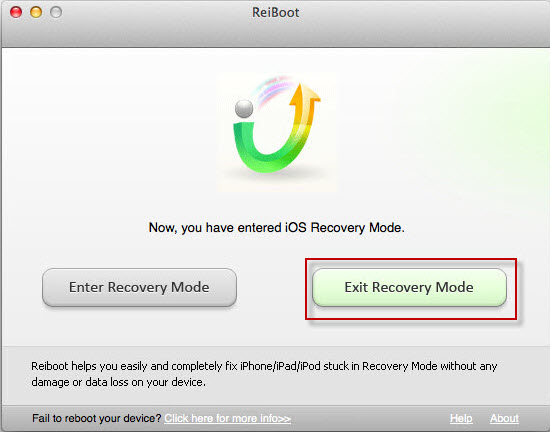
ReiBoot is the professional freeware which can help you reboot the frozen or hung iPhone and fix frozen iPhone after iOS 8/9 upgrade. And, you will not lose anything and your iPhone 6 Plus will run smoothly.
1.Download ReiBoot and install it on your computer. 
2.Connect iPhone to your PC and run ReiBoot. Click "Enter Recovery Mode". 


Hope one of the way can help you unfreeze your iPhone 6 Plus after iOS 9 Upgrade!

8/31/2015

How to Fix iPad Freeze After iOS 9 Update

As the iOS 9 release online, some of the iPad users may update their iOS system to iOS 9 in order to experience it. However, not every update is a perfect update. There are still some bugs while updating iPad to iOS 9, such as the frozen iPad. That is to say, some iPad freezes after updating to iOS 9. Here in this article, we will tell you how to fix iPad freeze after iOS 9 update in 3 ways. You can try one of them and keep on using iPad with iOS 9 system.


Tricks 1: Attempt a hard reboot


You can make use of the hard reboot after the issue occurs. How to use the hard reboot? At first, hold down the Home button and Power button at the same time until you see the Apple logo. Keep holding two buttons down for at least 30 buttons. If nothing happens, you have to ask for other workable methods for help in order to continue using your iPad.

Tricks 2: Insert a Wall Outlet


This is the second possible way to fix your iPad. You can just charge your iPad into outlet and then your frozen iPad is about to be triggered. Wait for about 15 minutes, if your iPad is still not responding, you had better ask for other tricks.

Tricks 3: Freeware: Reiboot


The last alternative you can use is the Reiboot. It is designed to help with you in and out of iOS device recovery mode. You won’t lose any data while using Reiboot. Except for fixing the frozen iPad, you can even use this freeware when your iOS devices get stuck in iTunes logo or Apple logo. It supports Windows and Mac.

Well, to use this freeware, you just need to download and install Reiboot from its official website or other download center. And then connect your iPad to computer, open the software and to choose “Enter Recovery Mode” or “Exit Recovery Mode” button.


8/23/2015

How to Recover Deleted iPad Photos/Messages/Notes after iOS 9 update

iPad data lost after iOS 9 beta update? Don’t worry, iPad data recovery is a powerful tool for us users to recover lost photos, messages, notes, call history, videos, etc. from iPad Air 2, iPad Air, iPad mini 3, iPad mini 2, iPad min, iPad 4/3/2 after iOS 9 update. It offers 3 ways to help you recover deleted iPad data: recover lost data from iPad without backup, retrieve deleted iPad data from iTunes backup file and restore iPad data from iCloud backup. In this article, I will tell you how to recover deleted iPad photos/messages/notes after iOS 9 update.

Way 1: Recover Lost iPad Photos/Messages/Notes Directly without iTunes Backup Files

Step 1: Connect iPad to Computer with a USB Cable
Download and run iPad Data Recovery. Connect your iPad with your PC and click "Recover Data from iPad" mode.
Step 2: Scan iPad Data
Click "Start Scan" to scan lost data you need on iPad.
Step 3: Preview and Recover Data from iPad
Select your deleted iPad photos/messages/notes/call history/videos to preview. Then choose you need and click "Recover". At last, select a save path to restore your lost data from your iPad.

 
Way 2: Retrieve Lost iPad Photos/Messages/Notes from iTunes Backup Files


Step 1: Scan iTunes Backup File

Select "Recover Data from iTunes Backup File". Select your file and click "Start Scan".
Tips: If your iTunes backup is locked by a wrong password or you forgot your iTunes password, please try iPhone Backup Unlocker to unlock your password first.
Step 2: Preview and Recover Deleted iPad Data
Select the lost data to preview. Choose the ones you like and click "Recover" button. Then select a save path to recover deleted iPad photos/messages/notes/call history/videos.
 
Way 3: Restore Photos/Messages/Notes from iCloud Backup Files

You can also restore lost iPad data after iOS 9 update from iCloud backup. The steps are also very easy: Login into iCloud account>>Select and download iCloud backup>>Preview and select the lost photos/messages/notes on iPad.

Hope you can have a nice experience! And if you want to recover lost iPhone 6/6 Plus/5/5s/4s/4 photos/sms/contacts/notes and more after iOS 9 upgrade, iPhone data recovery free is a best choice.


7/14/2015

How to fix blue screen of death iPhone 6

Hey, have you met the situation that iPhone was stuck in an infinite bootloop with intermittent blue screens (of death?), even the buttons are useless to make the phone work. This kind of problem have happen to many users ramdomly. It is caused by a software problem in iOS.
To fix bule screen of death iPhone 6, some ways can reliable.

Solution 1: Check all apps in your iPhone 6

In some case, some apps may conflict with the iOS. So, you can try to check whether some apps are not identified by App store, or update them to the lastest versions which may been fixed the bug of confiliction. However, if you find that blue screen of death was happen when you launch an app, and update or reinstallation can't solve this problem, you can uninstall the app.

Solution 2: Try to update your iPhone 6 to lastest iOS

Based on the data, this blue screen problem mostly happen in relative old version. So  it is better to update your iPhone 6 system to the lastest version such as iOS 8 or iOS 9.


Solution 3: Shut down iCloud sycn in your device

Some users have report that, when they enale iCloud sycn in settings, blue screen will happen. Especially, when the syncing for notes, contacts, Safari,are working, you press Home button, blue screen may happen in this moment. Apple seems that don't explain why this issue happen. And when those users shut down iCloud sync feature after reboot, this kind of problem never happen again.

fix iphone blue screen
 Solution 4: Reset your iPhone with iTunes

If you can't operate anything on your iPhone to slove iPhone 6 blue screen problem, I am afraid that you need to try to do a factory resetting with iTunes. Of course, you can uset iTunes to back up your phone data firstly before resetting, then after fixing iPhone 6 blue srceen problem via resetting, you can get back you phone data.  

Solution 5 : Use FREE Reiboot to exit blue screen stage

With Reiboot, you can easily enter and exit iPhone/iPad/iPod touch Recovery Mode without manually holding down any of the buttons. Just one-Click ! It can keep your iOS devices data safely enter into Recovery Mode and then get out of Recovery Mode even when iPhone/iPad/iPod Touch encountered reboot failure, such as getting stuck with Apple logo, black screen, iTunes logo/cable, or an endless loop of rebooting.This way is  a good way to help your iPhone 6 exit death blue screen .

6/08/2015

How to Recover Disappeared Contacts on iPhone 6 Plus/6

We all know that phone contacts is some kind of important resource in our life, but sometimes we may accidentally get them to disappear for some reason. This is a disaster for us, so there is a topic we will discuss today: How to recover disappeared contacts on iPhone 6 Plus/6.

We need to know why would we lose our contacts first.


1.Deleted by Accident
2.iOS update
3.Factory reset
4.iPhone Plus/6 Jailbreak
5.Attacked by Virus
6.iPhone Plus/6 is stuck in black/white Apple logo screen or other death screen
7.iPhone Plus/6 is stuck in recovery mode
8.Battery replacement

If we encounter those situation and find that our contacts are lost, the important thing is try to figure out a way to recover the disappeared contacts on iPhone 6 Plus/6 .


Therefore, how to recover disappeared contacts on iPhone 6 Plus/6?


iPhone 6 +/6 don’t have some function like recover our contacts automatically, so if we want to recover them from our iPhone directly, we need to use a third-party data recovery software. Of course, if we have synced our iPhone 6 Plus/6 with iTunes, we can restore our lost contacts by iTunes.

Speaking of the third-party data recovery software, Tenorshare iPhone 6 Data Recovery can achieve this goal for you, directly recover the data is the selling point of this program, with this feature, you can easily get your deleted contacts back, not only the disappeared contacts, the lost photos, videos, WhatsApp messages, voice memo and so on from iPhone 6+ can also be restored by 3 steps:  

The First Step: select the recovery mode
There are three modes can be chosen: “Recover Data from iOS device”, “Recover from iTunes backup files”, “Recover from iCloud backup files”. It is very easy to understand, in this case, we choose the “Recover Data from iOS device”.
The Second Step: Scan
All three modes need to executive the step of scan. The scan time depends on how many files on your iPhone  6 Plus/iPhone 6.
The Last Step: Preview and Recovery
When the scan is done, you can select the contacts on the left and preview all of them, choose the contacts you need and recover them.

You can master this program in a few minutes, it is not complicated, just follow the guide you can easily get your lost contacts back. By the way, Tenorshare iPhone 6 Plus/6 Data Recovery also can restore your contacts from your iTunes or iCloud backup, and the advantage is only one software can complete all the recover or backup mission. It’s convenience and easy to use. I hope it can help you!

4/16/2015

iPhone 6 Plus and other iOS 8 devices deleted photos recovery

It is easy for iPhone 6 Plus and other iOS 8 devices users to recover deleted photos, because there is a recycle bin feature in iOS 8 gallery app. As long as you haven't clean deleted photos in recycle bin folder, you just click "restore" to get them back to galley.

However,deleted photos have been removed?

Sometimes, it is not so smoothly to recover deleted photos from iPhone 6 Plus and other iOS 8 devices. Deleted photos in recycle bin just will be kept for 30 days; system will clean them automatically when time is out. Besides, some other management program for iOS device may removed deleted photos when you use clean phone option.
Except for accidentally deletion, you may lost photos from your iPhone 6 Plus or other iOS devices caused by the following reasons:

1. iOS upgrade failure
2. iPhone jailbreak
3. iPhone has been stolen
4. iPhone has been broken
5. Factory setting restoration

Unless you have backup, as long as your deleted photos haven't been in the recycle bin, you can't get back them easily.

Ways for iPhone 6 Plus or other iOS 8 device deleted photos recovery


To get back iPhone deleted photos, generally, we have two types of ways.

Way 1: we can rely on iTunes backup 
 
When we use iTunes backup to restore lost iPhone data, we can directly restore in iTunes program by official operation. This way will totally restore whole system for your iPhone with previous stage that was backed up.

Another ways to restore iTunes backup is the 3rd-party professional iPhone data recovery program. This kind of recovery program can read iTunes backup file and extract specific data in backup files.


iphone 6 plus deleted photos recovery


Tenorshare iPhone Data Recovery is one of them which are the most powerful. It can help you restore lost iPhone 6 Plus data via iTunes backup. However, it is different from official restoration. With this program, you can view the specific files that have backed up before, it means, you can just get back what you want instead of restoring the whole system. It is more convenient.  

Way 2: you can try to directly do recovery from iPhone without backup

Honestly, the most excited feature of Tenorshare iPhone Data Recovery not only is helping user to restore data from iTunes backup, but also can directly do iPhone 6 Plus deleted data recovery without backup.

This feature is the main point of iPhone data recovery program. With the help of this feature, you can easily get back deleted, lost photos, contacts, text messages, videos, WhatsApp messages, voice memo, etc from iPhone 6/6 Plus/ iPhone 5S or other iOS devices.

"Connect-Scan-Recover", only 3 step can help you retrieve iPhone 6 Plus or other iOS 8 device deleted photos
Hey,have you known how to get back your deleted photos from iPhone 6 Plus? I hope my sharing can help you!